Nine in the morning. Fieldstone Home is a team of six selling in four places: a Shopify store, a WooCommerce site they never retired, Amazon, and a marketplace they added last spring. (Demo data.) The two people in the warehouse start every day the same way: four tabs, four panels, four separate checks for new orders, everything copied into one spreadsheet, and a packing list printed from that spreadsheet. At 60 orders a day it takes 40 minutes. That is 20 hours a month, two and a half working weeks a year.
The 40 minutes are not the real cost. The real cost is that none of the four panels shows you the whole picture. Which shipment has not moved in three days, which order went out without a tracking number, which product runs out this evening: no panel answers those, because each one only knows its own channel. Multichannel order management is the layer that fills the gap. It does not replace the seller panels, it puts your working desk on top of them.
This guide covers how to build that desk: what each channel actually delivers, why the order number is the only matching key that survives contact with reality, how to keep shipping and stock honest, and, plainly, what a system like this does not do.
How the day disappears across channels
Work does not grow in a straight line as you add channels, it multiplies. Each platform brings its own numbering, its own status names and its own screen. The diagram below is what one desk looks like instead.
Before merging those six boxes, look at the cost of not merging them. A team selling on four platforms repeats five losses, and none of them is incompetence. Each one comes from the absence of a single list.
- 1. Packing the same order twice. When the order lives both in a panel and in a spreadsheet, two people can pick the same parcel. It looks small until a duplicate shipment comes back at your expense.
- 2. Shipments with no tracking number. The parcel left, the number went nowhere. When the customer asks, there is no answer, and a missing answer is how a refund request starts.
- 3. Orders shipped before payment landed. An order awaiting a bank transfer gets picked, packed and shipped, and the money never arrives. This is the loss that grows fastest as channels multiply.
- 4. Stock collisions between channels. Eight units in the warehouse are listed on four platforms at once. Eleven orders arrive the same day and three customers get a cancellation email.
- 5. Not knowing which channel actually pays. Without revenue split by channel you keep buying ads for the platform with the highest commission and the highest return rate.
All five share one root: the order never became one record. No record, no list. No list, no discipline.
Six questions to ask before wiring an integration
Every integration claims to connect every platform. The difference shows up after it connects. Six questions to settle first:
| # | Question | Why it matters |
|---|---|---|
| 1 | Is the sync one way or two way? | A system that only pulls orders and one that also writes status and stock back produce completely different processes. Either can be right; starting without knowing is not. |
| 2 | How often does it sync? | A once-a-day pull adds a day to your dispatch time. A sync measured in minutes lets an order ship the day it arrives. |
| 3 | What happens when the same order arrives twice? | Without a matching key every sync creates duplicates. The key should be the order number, prefixed per platform so numbers cannot collide. |
| 4 | Is the note I typed preserved? | If the sync blindly overwrites the record, your "customer asked to change the delivery address" note is erased every 15 minutes. |
| 5 | Where does stock come from? | Which field joins an order line to a product card? If the rule is vague, stock never moves and nobody notices. |
| 6 | Where do my API keys live? | An API key is the door to your seller account. Stored on the server or shipped to the browser? Masked on screen or readable? |
Do not connect anything before you have written answers, especially to the first one. If you assume a two-way sync and get a one-way one, your team will mark orders as shipped in the CRM while the platform never receives a shipment confirmation. On most marketplaces that is a performance penalty, not just a mix-up.
The only matching key that works: the order number
The whole multichannel setup rests on one field: the order number. The rule is that when the same number arrives a second time, no new record is created and the existing one is updated. That single sentence solves duplicates, double picking and wrong stock movements at once.
The second rule is prefixing, so numbers cannot collide. Order 40917 on one platform and order 40917 on another are not the same order; written as SHP-40917 and WC-40917 they never can be confused.
The third rule is to keep updates narrow. When a sync touches an existing record it should only change what the platform can legitimately know: status, payment status, tracking number. Customer, address, line items and above all the note a human typed stay untouched. Otherwise the system deletes human knowledge on every run.
The order desk: what belongs on one screen
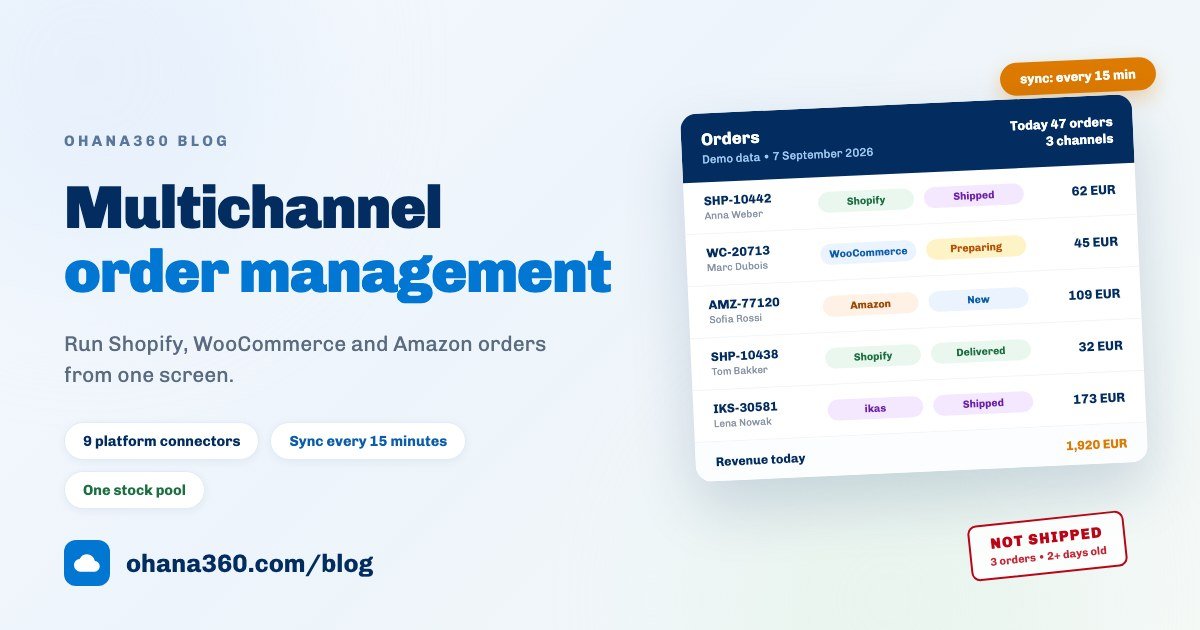
Building one list is not the same as building the right list. A good order desk shows three things before you even read the order number: which channel it came from, what state it is in, and what it is worth. Here is what that screen looks like.
The three cards on the right matter as much as the list. The channel split shows the shape of the day. The orders needing attention card is the one that sets your morning: awaiting payment, not shipped for two days, and shipped without a tracking number. The low-stock card tells you at nine what would otherwise surprise you at six.
For that desk to work, the order record needs a fixed set of fields:
| Field group | What is in it | What it is for |
|---|---|---|
| Identity | External order number, internal record number, order date | Matching, search, and quoting a reference back to the customer |
| Customer | Name, email, phone, city, district, full address | Shipping details and contact; recognising the same buyer whatever channel they used |
| Line items | One per line, as a short code and a quantity (for example bedding-set x 2) | Matching to the product card, calculating amounts and moving stock |
| Amounts | Subtotal, shipping fee, grand total | Revenue by channel and average basket |
| Status | Order status and payment status | Picking order and payment risk, tracked separately |
| Shipping | Carrier, tracking number, shipped and delivered dates | Answering "where is my parcel" from the record |
| Channel | Sales channel and a source note | The channel scorecard and your ad budget decision |
One detail is worth insisting on: order status and payment status are two separate fields. A cash-on-delivery order can be shipped and still unpaid. Any design that squeezes both into one field makes payment risk invisible.
The status path and shipping discipline
Keep the path short. Four steps are enough: New, Preparing, Shipped, Delivered, with Returned and Cancelled sitting off the path. Seven-stage workflows look more precise on paper and go unfilled in practice.
| Status | When it is set | Whose job | What happens if it is skipped |
|---|---|---|---|
| New | The moment the order lands (automatic) | The system | - |
| Preparing | When picking starts | Warehouse | Two people pick the same parcel |
| Shipped | When the parcel is handed over, together with the tracking number | Warehouse | No answer when the customer asks, and a refund request starts |
| Delivered | When delivery is confirmed | Warehouse or the sync | The open-orders list bloats and the attention list stops meaning anything |
| Returned | When the goods come back | Customer service | Stock is never added back and the inventory stays wrong |
| Cancelled | When an order drops before dispatch | Customer service | Revenue reports are overstated |
On the shipping side there is one rule: the tracking number goes in at the same moment as the status. The two minutes you save by saying "we will add it later" come back as a customer complaint three days on. In a well-built system the two fields are already tied together: the ship action changes the status and drops your cursor straight into the tracking number field.
Stock: one pool, one matching rule
In multichannel selling stock is held in one pool, not per channel. Eight bedding sets in the warehouse means four platforms can sell eight in total. Whether that pool behaves depends on a single condition: the short code on the order line has to match the short code on the product card exactly.
That short code (the slug) is the key between your storefronts and the CRM. bedding-set and bedding_set are not the same product, and if they do not match, stock simply never moves. Nobody notices, because the mismatch raises no error; it quietly does nothing. That is why the most critical step of a rollout is aligning your product codes across channels.
With the pool set up correctly, three things run on their own: quantities drop when an order is created, they come back when it moves to Returned or Cancelled, and an alert is raised when the quantity reaches the low-stock level you set. Set that level from the lead time: 5 for something that arrives in two days, 40 for something that takes three weeks. One threshold applied to the whole catalogue turns alerts into noise.
The channel scorecard: which one actually pays?
Revenue by channel on its own is misleading. Your biggest channel by revenue can be your smallest after commission and returns. Four numbers, looked at monthly, are enough:
- Orders per channel. Where is the volume?
- Revenue and average basket per channel. Are volume and value in the same place? A channel with a low average basket can lose money once shipping is counted.
- Return rate per channel. Returned orders as a share of that channel's total. A rate that doubles is usually telling you something about a listing description or a photo.
- Commission and shipping load per channel. This number comes from the platform, not the CRM, but no decision is safe without it sitting next to the other three.
Put the four side by side and the decision writes itself: where to run a promotion, where to revisit pricing, and where to stop selling.
The first 7 days: a setup plan
The most common way this migration fails is connecting every channel on the same day. Start with one, let it settle, then add the second. One hour a day for seven days is enough.
| Day | What to do | What you have at the end of it |
|---|---|---|
| 1 | Import the product catalogue from CSV: name, short code, price, stock quantity, low-stock level | The catalogue stock movements will rest on |
| 2 | Align those short codes with the product codes on every channel and fix the mismatches | Order lines that genuinely connect to product cards |
| 3 | Connect one channel only, the busiest one, and verify it with Connect and Test | An order list that fills itself, and a real check of the field mapping |
| 4 | Review the first day of synced orders by hand: are amounts, addresses, line items and channel correct? | One verification pass before you start trusting the automation |
| 5 | Add the remaining channels one at a time; set the order defaults (carrier, channel, shipping fee) | A complete single list and fast manual order entry |
| 6 | Build the reports: revenue by channel, orders by status, orders by month | A dashboard worth opening once a week |
| 7 | Run a 30-minute rehearsal: take one order from New to Delivered, process a return, follow a low-stock alert | A working desk and a team that knows it |
On day eight, the spreadsheet closes. Running both in parallel helps in week one and hurts in week two: nobody writes things down twice.
How it works in Ohana360
Commerce360 is that desk. Here is what it does, without inflation, and what it does not do, without hiding it.
- Tabs: Home, Orders, Products, plus the shared Accounts, Contacts and Tasks. Orders and products are two separate objects, and you can add your own fields and picklists to either in the Object Manager.
- Marketplace connections: nine providers connect directly: Shopify, WooCommerce, ikas, Amazon (beta), Trendyol, Hepsiburada (beta), n11, Pazarama and Ciceksepeti. You set them up on the Marketplaces tab in App Settings, which only admins can see. Keys are stored on the server per organization, never reach the browser and appear masked on screen. Connect and Test makes a real request; if it succeeds the keys are saved and the first sync runs.
- The sync: every 15 minutes the server scans recent orders, creates the new ones and updates status, payment status and tracking number on the ones it already has. Sync Now on the connection row does the same on demand. To pause it, set the "Marketplace order sync" card under Setup to Inactive; Disconnect only stops the sync, it never deletes orders.
- The store webhook: the second route, for custom-built sites. Your store sends a POST request authorized with a Bearer API key when an order is created. The key field is the order number, so the same number arriving twice updates only the fields you sent. Your record-triggered flows run on webhook writes too.
- The order record: external order number, customer details, address, line items, subtotal, shipping fee, total. The status path is New, Preparing, Shipped, Delivered, with Returned and Cancelled off the path. Payment status is tracked separately: Paid, Pending, Refunded.
- Ship Order: the button on the record page moves the status to Shipped and puts your cursor in the tracking number field. The Return button flags the order as returned in one step. The carrier is a picklist.
- Products and stock: each product is a numbered card with a name, short code, price, old price, status, image and note. Entering a stock quantity turns tracking on; leave it empty and nothing is tracked. The low-stock level is the alert threshold: the list turns red and a notification is raised when the quantity reaches it, and an out-of-stock notification when it hits zero. Quantities drop when an order is created and come back on Returned or Cancelled.
- Notifications: a new order raises an org-wide bell notification and a push notification; tapping it opens the order record directly.
- The home page: today's orders, the object inventory and the orders needing attention list, ranked by reason: awaiting payment first, then not shipped for two days, then shipped without a tracking number.
- Not included: there is no write-back to the platforms. Changing a status, typing a tracking number or correcting stock in Ohana360 sends nothing to Shopify, Amazon or any marketplace; the sync is one way. There is also no carrier API integration, no label or barcode printing, no listing and price management, no marketplace commission accounting, and no e-invoicing. Those stay in your seller panels and your accounting setup.
- One more boundary: the Products and Orders objects in Commerce360 are separate from the Products and Price List used by Sales360 and from Finance360 orders and invoices. The retail flow and the quote flow never mix. If you run both, track revenue with separate reports.
- Beta note: the Hepsiburada and Amazon connectors are marked beta. While Amazon developer approval is pending, Amazon works only for your own store with a refresh token from Seller Central, and buyer name and address need an additional Amazon role approval; without it orders arrive with no address.
Want to see the flow in 80 seconds?
Which reports to build
An honest boundary first: Commerce360 does not ship with ready-made reports or dashboards. The report builder lists Orders (Commerce360) and Products (Commerce360) as objects, and you build the reports yourself, drop them on a dashboard and add an email subscription if you want one. The reportable fields on the order object are: order number, record number, customer name, city, sales channel, status, payment status, carrier, subtotal, shipping fee, total and order date. Date fields group by day, week, calendar month, quarter and year.
| # | Report | Object | Group by | Measure / filter |
|---|---|---|---|---|
| 1 | Revenue by channel | Orders | Sales channel | Sum of total |
| 2 | Orders by channel | Orders | Sales channel | Record count |
| 3 | Open orders by status | Orders | Status | Record count, filter: Status ≠ Delivered |
| 4 | Orders awaiting payment | Orders | Sales channel | Sum of total, filter: Payment status = Pending |
| 5 | Revenue by month | Orders | Order date (calendar month) | Sum of total |
| 6 | Orders by city | Orders | City | Record count |
| 7 | Shipments by carrier | Orders | Carrier | Record count, filter: Status = Shipped |
| 8 | Products by stock state | Products | Stock | Record count |
A second honest boundary: average basket and return rate are not fields in the report builder. You get the average basket by dividing the channel revenue by the channel count, and the return rate by putting two reports side by side. Revenue per product is not reportable at all, because line items live as text lines on the order record; you follow product-level movement from the recent orders list on the product card instead.
If you are moving the next link in the chain, invoicing and collections, into the same place, the invoice and payment tracking guide picks up where this one stops. To make dispatch, delivery and return updates leave your system instead of your memory, see the automated customer follow-up guide; if your data still lives in a spreadsheet, start with the Excel customer tracking guide. Current numbers are on the pricing page, and you can request a demo to try it with your own data.
Frequently asked questions
What does multichannel order management software actually do?
Can I manage Shopify and Amazon orders in one place?
Does it push status or stock back to the marketplace?
How often do orders sync, and what about the gap?
Do I need a separate integration for my own website?
Does it print shipping labels or buy postage?
One list instead of four panels
Shopify, WooCommerce, Amazon and your own site in the same screen. Unshipped orders flag themselves, and low stock tells you in the morning rather than at six in the evening.